Settings (Web Version)
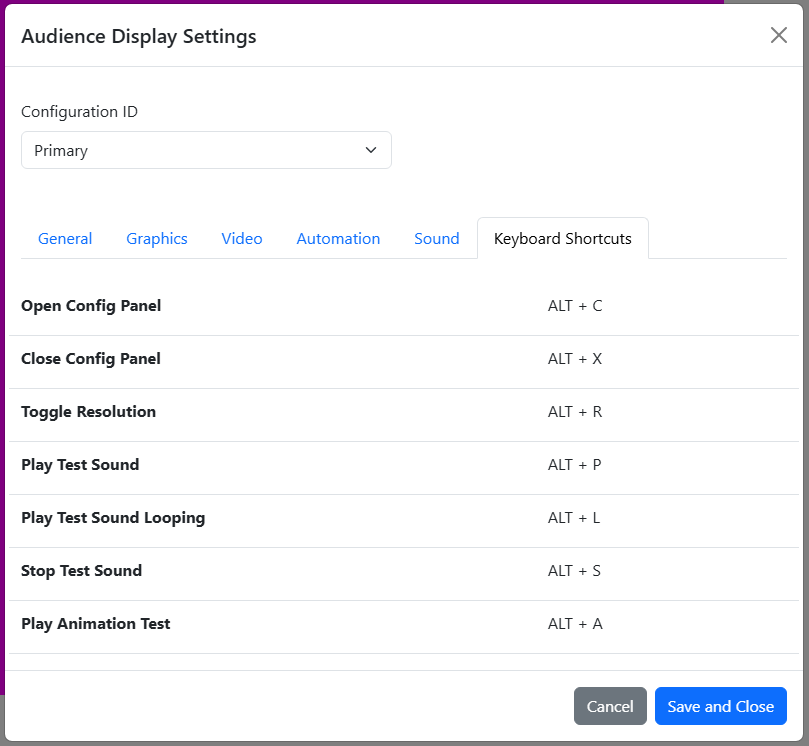
Customize the look and feel of the Audience Display via the settings panel. Settings are specific to each Configuration ID. Access the settings from the Audience Display hover menu and clicking the Gear icon, or use the keyboard shortcut ALT-C when the Audience Display program is in focus.
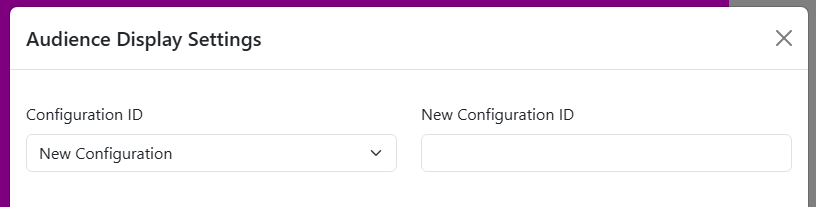
Configuration ID
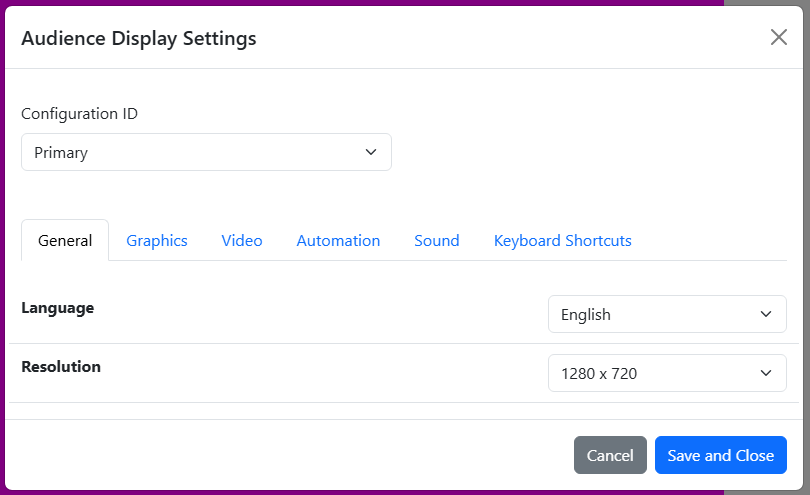
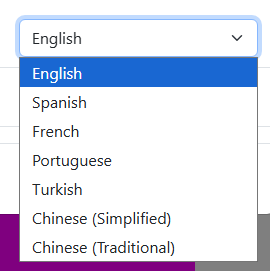
General Settings
To close the settings panel at any time, click the “Save and Close” button on the top middle of the settings display.
Graphics Settings
Note
Careful consideration should be used before changing these options as they can cause confusion for audience members who expect a traditional layout from year to year. For official FRC Events, if in doubt, contact your Engineering support contact.
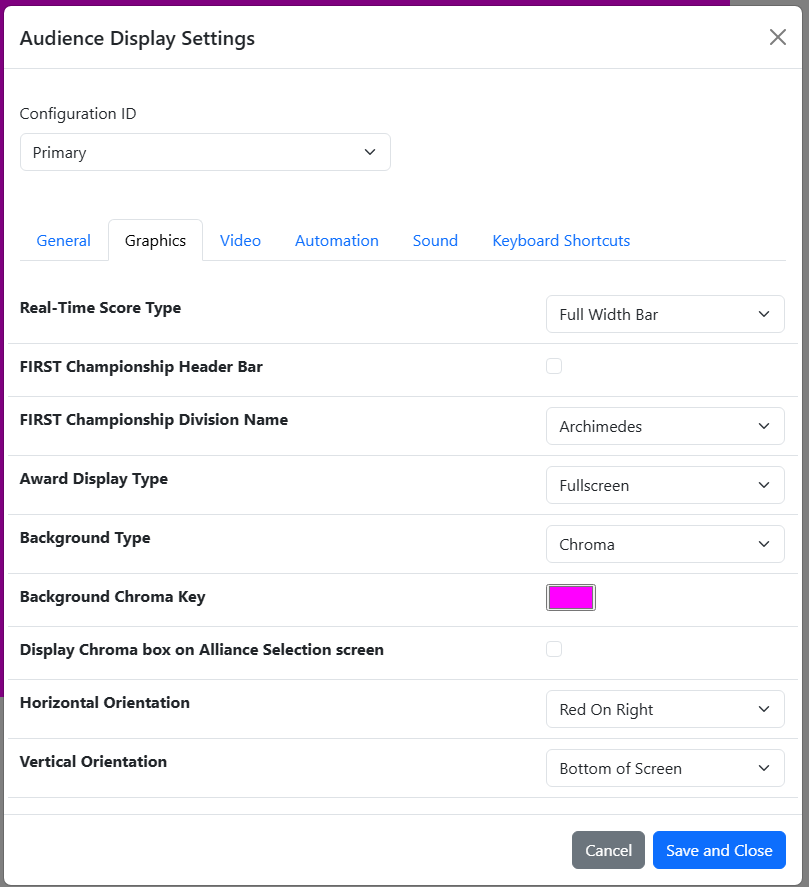
[Preset Types]
Main In-House Display - Default singleton operation
Live Stream Display (default) - Load the default settings for Audience Display instances being used on FIRST Webcast Units
Champ Center Display - For use by FIRST HQ at FIRST Championship
Custom Settings - Individually specified user settings
[Real-Time Score Types]
Live Stream Bug (default) - Webcast versions as arranged with FIRST HQ and provides an alternate view of the data in a more compact, centered display
Full Width Bar - The traditional score bar that takes up the full bottom third or so of the Audience Display
[FIRST Championship Header Bar and Division Name] Configuration options specific to the FIRST Championship. Please do not adjust these settings at any events except under the direction of FRC Support.
[Award Display Type]
Live Stream Bug (default) - Show award names and award winners in a simplified web friendly display on top of the camera view
Fullscreen - Show award names and award winners full screen without space for chroma (camera shots)
[Background Type]
Chroma Background - Show the selected color in the area to be keyed (or cut) out and replaced with live event video from a camera or production feed. The actually “keying” process and mixing of video would need to be done through external software, not through FMS/Audience Display.
Ranking Display - Removes the background screen color (Chroma) and shows a ranking screen in its place. The list automatically scrolls through all the ranked teams at the event, in rank order. Teams must have played one or more qualification matches to be included in the listings.
Transparent - Displays nothing behind the graphics in the audience display, allowing for easy use in video editing software such as OBS.
Note
Updates to the qualification rankings via out-of-band processes (such as Match Review) will not update the rankings if the rankings are on screen during the update process; to update rankings, the Video Switch must be used to select another view (such as “Background”) and then reload the desired view (“Video Only” or “Video and Score”).During Playoff matches, the rankings are replaced with the playoff bracket to show progression through the tournament.
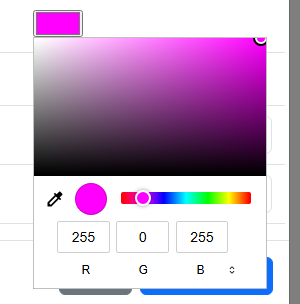
[Background Chroma Key] Select the color to be used for the Chroma Key (if in Chroma mode). In most cases, the deault “Fuchsia” should work great. The desired color will be dictated by the event’s production group. RGBA and Hex values are both accepted.
[Display Chroma Box on Alliance Selection Screen] Select the color to be used for the Chroma Key (if in Chroma mode). In most cases, the deault “Fuchsia” should work great. The desired color will be dictated by the event’s production group. RGBA and Hex values are both accepted.
Warning
Avoid using common colors like “red” or “blue” as Chroma Key colors, as they will also cause portions of the other graphics (like the FIRST logo) to be keyed out.
Note
Careful consideration should be used before changing these options as they can cause confusion for audience members who expect a traditional layout from year to year. For official FRC Events, if in doubt, contact your Engineering support contact.

[Vertical Orientation] Move the real time score display to the bottom of the screen or to the top of the screen based on venue needs.
Video Settings
Automation Settings
Warning
If using the Minimal CPU option and using vMix or OBS to capture the Audience Display window, the animations will not capture in vMix or OBS.
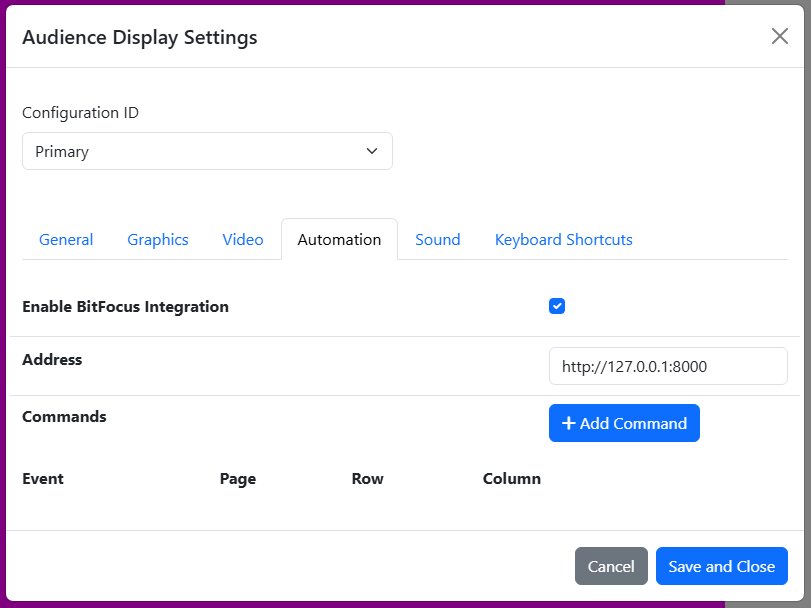
[Enable BitFocus Integration] Instruct the Audience Display to issue commands that can be detected by BitFocus (an A/V and production ). For more information see this article
Sound Settings
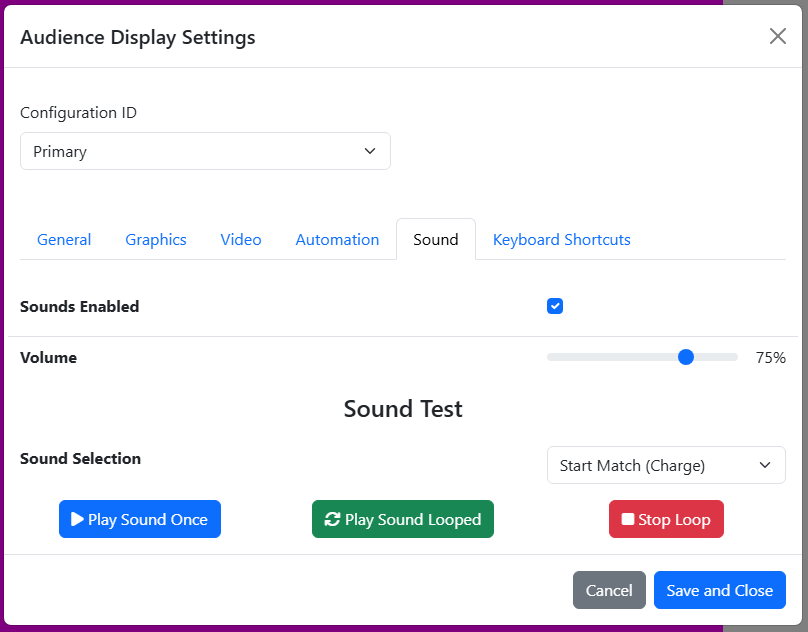
[Play Once] Single play of the selected sound
[Play/Stop Looped] Start or stop playing the sound until the opposite button is clicked. Particularly helpful
Shortcuts