Status Indicators
This page describes the status indicators on the Field Monitor.
Driver Station
Note
For suggestions on resolving issues with the Driver Station computer and software, please go to the Driver Station Troubleshooting section of the Connectivity Guide
Indicator |
Explanation |
|---|---|

|
No device is detected. |

|
A device is connected at the station, but FMS cannot communicate with the Driver Station software. |
|
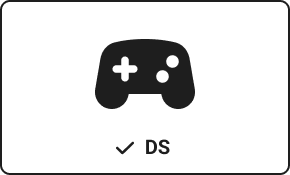
A device is connected with Driver Station software running and correct team number assigned. |
Robot radio
Note
For suggestions on resolving issues with the robot radio, please go to the Robot Troubleshooting section of the Connectivity Guide
Indicator |
Explanation |
|---|---|
|
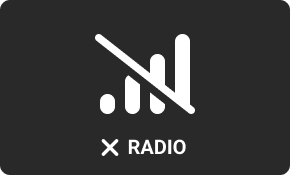
The radio is not connected to the Robot Access Point. |
|
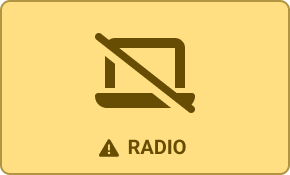
The radio is connected to the Robot Access Point, but cannot be pinged by the Driver Station software. |
|
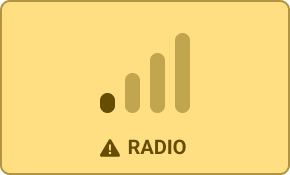
The radio is connected to the Robot Access Point, can be pinged by the Driver Station software, and has poor connection quality. |
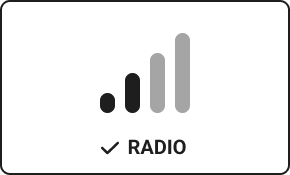
|
The radio is connected to the Robot Access Point, can be pinged by the Driver Station software, and has fair connection quality. |
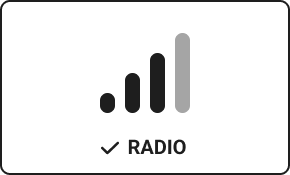
|
The radio is connected to the Robot Access Point, can be pinged by the Driver Station software, and has good connection quality. |
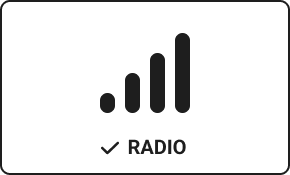
|
The radio is connected to the Robot Access Point, can be pinged by the Driver Station software, and has excellent connection quality. |
roboRIO
Note
For suggestions on resolving issues with the roboRIO, please go to the Robot Troubleshooting section of the Connectivity Guide
Indicator |
Explanation |
|---|---|
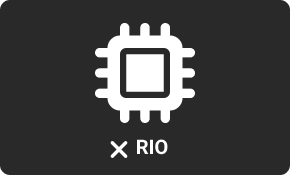
|
roboRIO is not detected. |
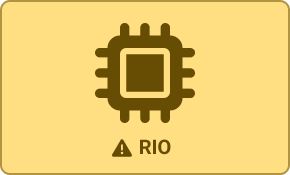
|
roboRIO is detected, but no robot code is observed running. |
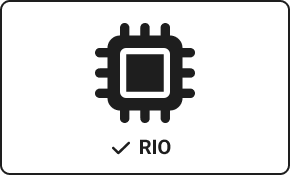
|
roboRIO is detected, with robot code running. |
Robot Status
These robot status indicators show in the top right corner of the station. Outside of a match, only the E-Stop, A-Stop, Bypassed, or Not Ready will show.
Indicator |
Explanation |
|---|---|

|
Robot is E-Stopped. |

|
Robot is A-Stopped. |

|
Robot is disabled in Auto mode. |

|
Robot is disabled in Teleoperated mode. |

|
Robot is enabled in Auto mode. |

|
Robot is enabled in Teleoperated mode. |

|
Robot has been bypassed by the Scorekeeper and will not run in this match. |

|
Robot is not fully connected and ready for match operation. This indicator is driven by the same data that drives the roboRIO indicators. This will only show after Pre-Start and before Match Start. |
Additional Radio Indicators
These radio indicators will appear next to the station indicator (ie “Station 3”).
Indicator |
Explanation |
|---|---|

|
The radio currently connected to the Field Access Point has a different MAC address than the one used by this team in their previous match. |

|
The team has not yet participated in a match (their WPA key has not been used). |
Station Status Indicators
When any of these indicators appear, all of the status indicators for the station will be hidden. They will appear again once the issue from the indicator is resolved.
Indicator |
Explanation |
|---|---|
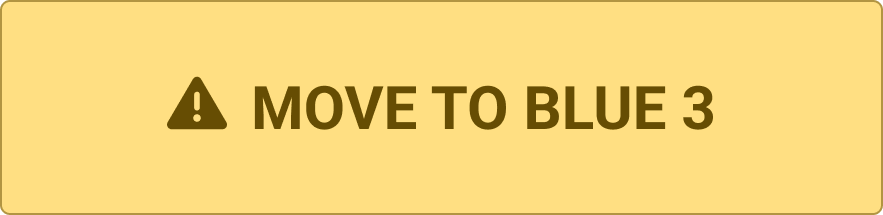
|
The device connected to the station is running DS software configured for the team that is scheduled to be in Blue Station 3. |

|
The device connected to the station is running DS software configured for the team that is scheduled to be in Red Station 1. |
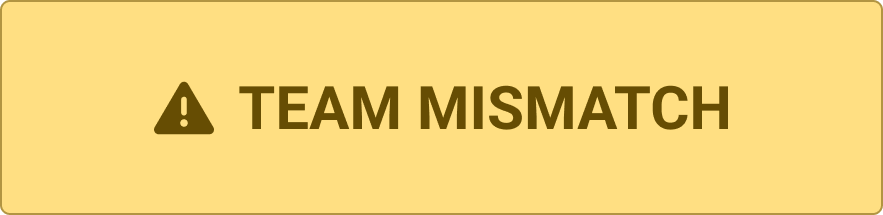
|
The device connected to the station is running DS software configured for a team that is not scheduled to be in this match. |