About Audience Display (Windows App Version)
Introduction
Audience Display is a software program, built and distributed by FIRST that is used to relay game and status information from FMS to the Audience at the venue and online (via the live stream, if applicable). The Audience Display can either be run as a standalone application or as a web app on a separate machine connected to the field network via Ethernet, it cannot run on FIRST Servers. This manual will walk through the available displays, configuration options, and best practices related to the Audience Display.
Important
Please do not install the Audience Display on official FIRST servers (“case 33”) - use the laptop marked Audience Display instead
Wiring Audience Display
In order to connect to FMS, the Audience Display must have a wired connection to FMS. The Audience Display needs to be on the same network as the FMS machine.
Opening Audience Display

To open the Audience Display, after installation, simply double-click on the television icon containing the FIRST logo for either the “Primary” or “Secondary” display. In most cases, only a single instance (the “Primary”) is needed. In some cases, it may be useful to have a second instance running (the “Secondary”) to retrieve additional graphics or looks. Consult with the FTA and/or FIRST Engineering before using the Secondary Display. A splash screen will be displayed while background processes complete, and the display will go to either the Background, or, if instructions are actively being sent (such as during a match) will jump to the appropriate position for that point in time.
Audio Output
The game sounds commonly associated with FRC events, such as the start of match ‘charge’ sound and the end of match buzzer, are processed by the Audience Display. On FIRST official fields, output is made available for the venue from either a standard 1/8” female connection (“headphone jack”) on a laptop that runs the Audience Display, or the HDMI connection (if using HDMI for video as well). Either audio configuration can be configured using Windows Audio configuration.
Note
In order to hear game sounds, the Audience Display program must be running
Event Setup Order
It is highly recommended that you do not run the Audience Display program until after initial configuration of the event is complete through the Event Wizard. Opening the programs out of order may result in freezing while event data is attempting to process.
Hover Menu
The Audience Display has a Hover Menu, accessible by simply hovering over the icon in the Taskbar. The menu provides additional functionality not accessible anywhere else in the Audience Display.
From left to right, the hover icons are:
[Open Config Panel] Open the config panel, the same as using the hotkey combination
[Center Display] Arrange the display to the center of the current monitor
[Reset To Primary Display] Force the program to go to the primary display, centered, as determined by which display has your taskbar
[Play Sound Once] Play a single test sound
[Play Sound Looping] Loop a test track for audio testing and tuning
[Play Match Result Animation Test] Runs the Post-Result animation one time in order to verify render quality
Closing Audience Display
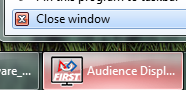
To close the software, either right-click on the taskbar icon and select ‘Close window’ or use the Windows hotkey combination of ALT-F4 (making sure the active window is the Audience Display)