BitFocus Companion
BitFocus Integration must be configured through the settings’ automation tab and is considered an advanced feature. You should only use this integration if you are familiar with computer networking.
BitFocus Companion is an incredibly popular audio/video/production control program that allows you to control almost any network-capable equipment (such as video mixers or audio consoles). The free Companion Software and use of the FIRST Audience Display allows automation based on event progression and may eliminate the need for one or more operators. Follow the below steps to configure and use BitFocus Companion.
For the remainder of this documentation, the product will be referred to simply as “Companion”
Recommended Setup
referred can only dispatch commands to devices that share a network connection, and therefore, the devices must be on the same network as the BitFocus installation. However it is critical not to add production equipment (or any unknown equipment) to the field network with FIRST Engineering permission. Instead, the recommended practice is to have two Ethernet NICs on the Companion target machine. One NIC will live on the field network (and receive a DHCP address of 10.0.100.*) and the other can live on the network with the production equipment to be controlled (which must not be 10.*).
Note
The Audience Display does not need to run on the same computer as Companion, they only need to communicate via Ethernet
Download and Installation
Download Companion (made by the company “BitFocus”) from their website at https://bitfocus.io/companion for your Operating System.
Note
A free account is required to download Companion, but no login is required once installation is complete
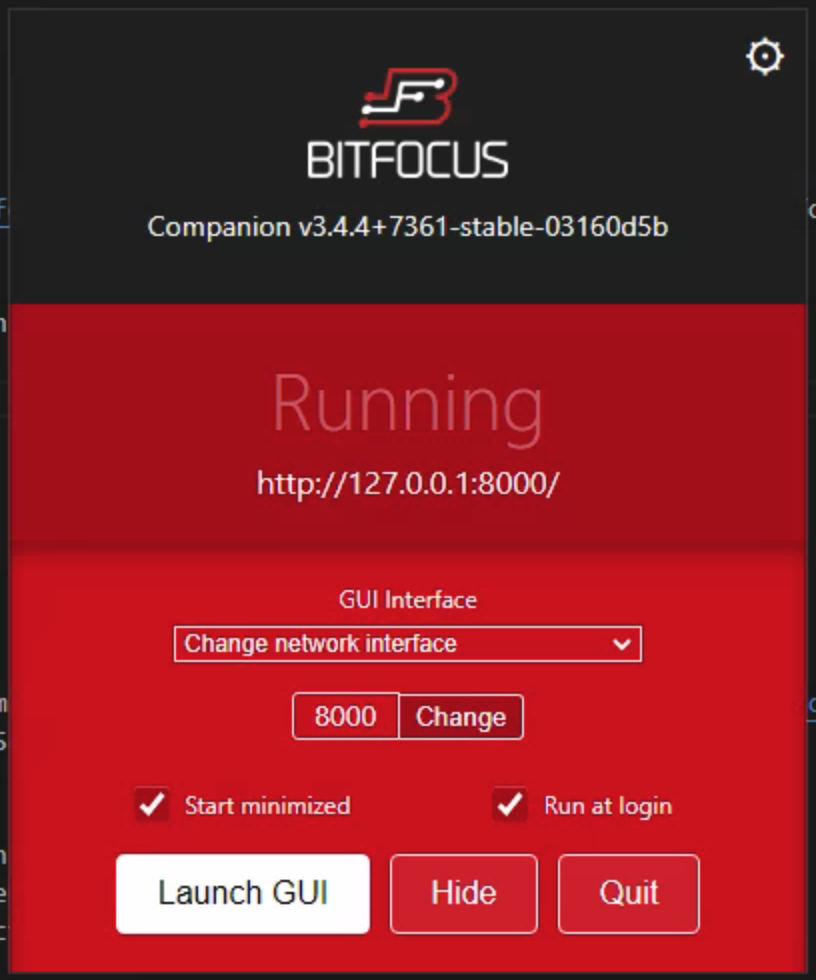
Install Companion and launch it using the icon or shortcut. Open the configuration window and verify your settings. At a minimum, it is recommended to have “Run at login” checked. Depending on your setup you may need to change the port (default is 8000) or the network interface. Do not set the port to 80 or 443. After changing settings, be sure to click “Hide” and not “Quit” as Companion must remain running in the background for this integration to work.
Determine Events of Interest
Audience Display requires the user to select from possible events to tie to Companion buttons. The following events are available to pick from:
Prestart - triggered when the process of configuring the field for a match begins
Match Preview - triggered when the Scorekeeper displays the upcoming match information to the audience
Set Audience - triggered when the Scorekeeper displays the match score bar to the audience
Match Start - triggered when the Autonomoud period begins
Teleop Start - triggered when the Teleoperted period begins, after any automated scoring thresholds have elapsed
Endgame Start - in games with a designated endgame period, triggered when the endgame warning sound plays to the audience
Match End - triggered when the Teleoperated period timer expires
Post Result - triggered when the final scores are display to the audience
Alliance Selection - triggered when the Scorekeeper shows the Alliance Selection screen to the audience
Award Ceremony - triggered when the Scorekeeper shows an Award related screen to the audience
Warning
Alliance Selection and Award Ceremony states are reliant on Scorekeeper action. It should not be assumed that these states are the official “Start” of a given ceremony or process, simply reflective of the information being shown to the Audience. In cases such as Awards, the state is not recalled upon each award presented, simply the first time the state changes.
Setup Companion Buttons
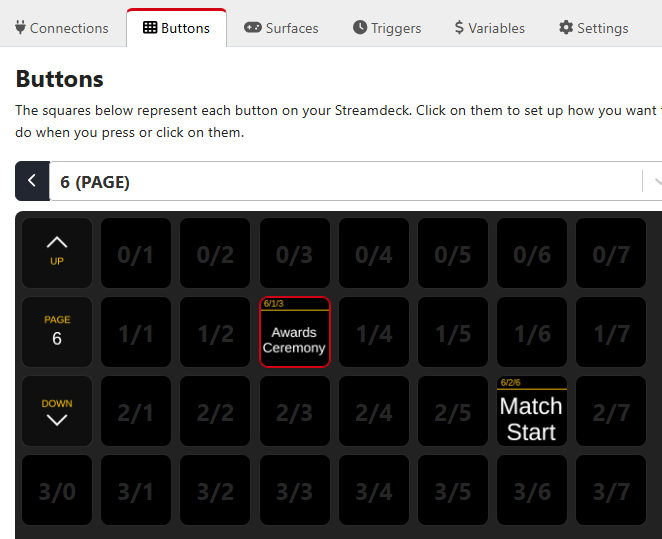
Open the Companion web interface by using the “Launch GUI” button in the settings panel or visiting localhost:8000 (or whichever port has been configured). Configure the buttons for the events you wish to subscribe to from the previously outlined list of options. This documentation will not detail how to configure individual actions for Companion buttons, instead more information can be found on their support page or by watching videos online.
Note
There could be as many additional buttons as desired on any number of pages, Audience Display will simply ignore irrelevant buttons. Notice the numbering scheme for Companion is often 0-based.
Audience Display Settings
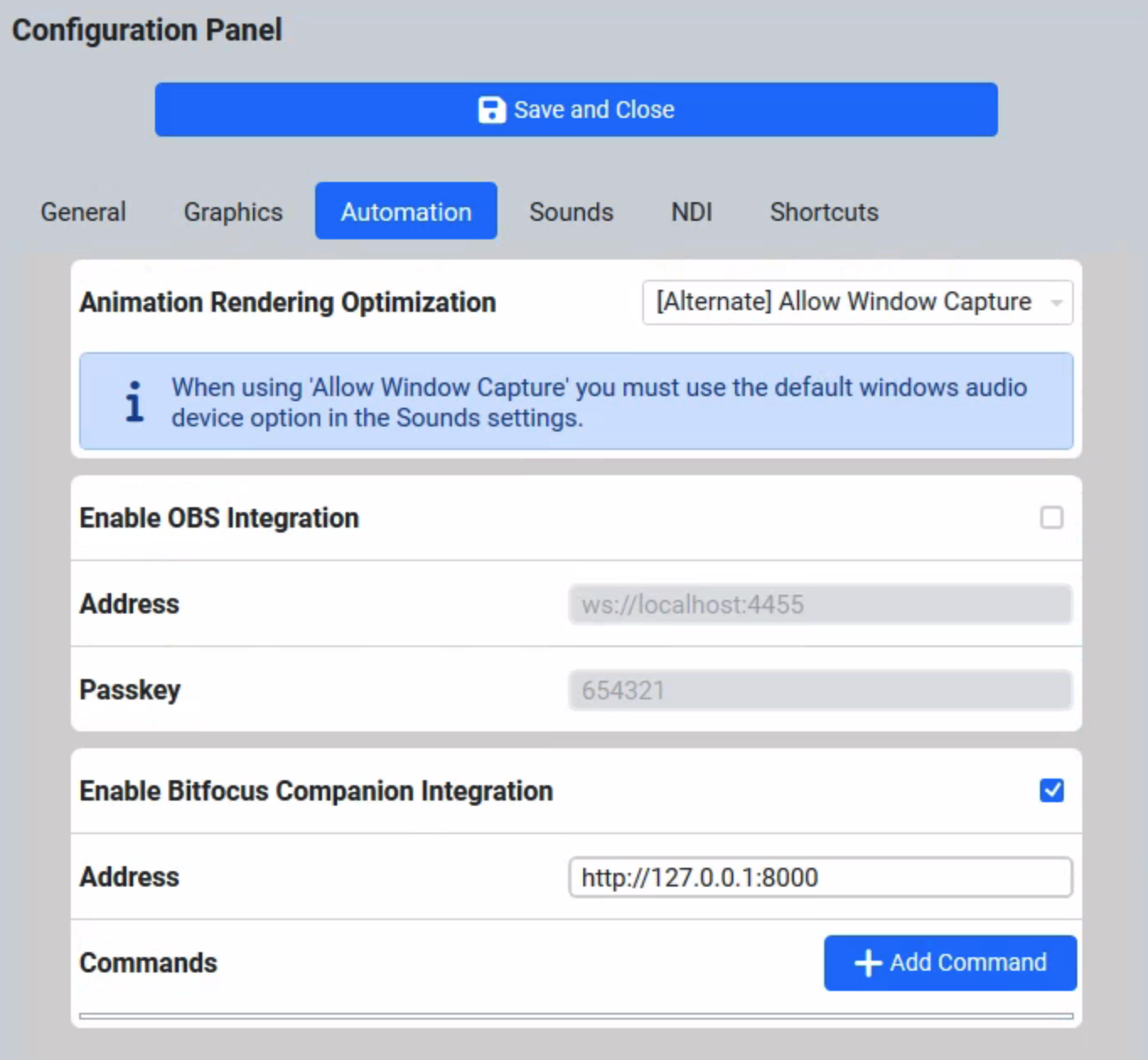
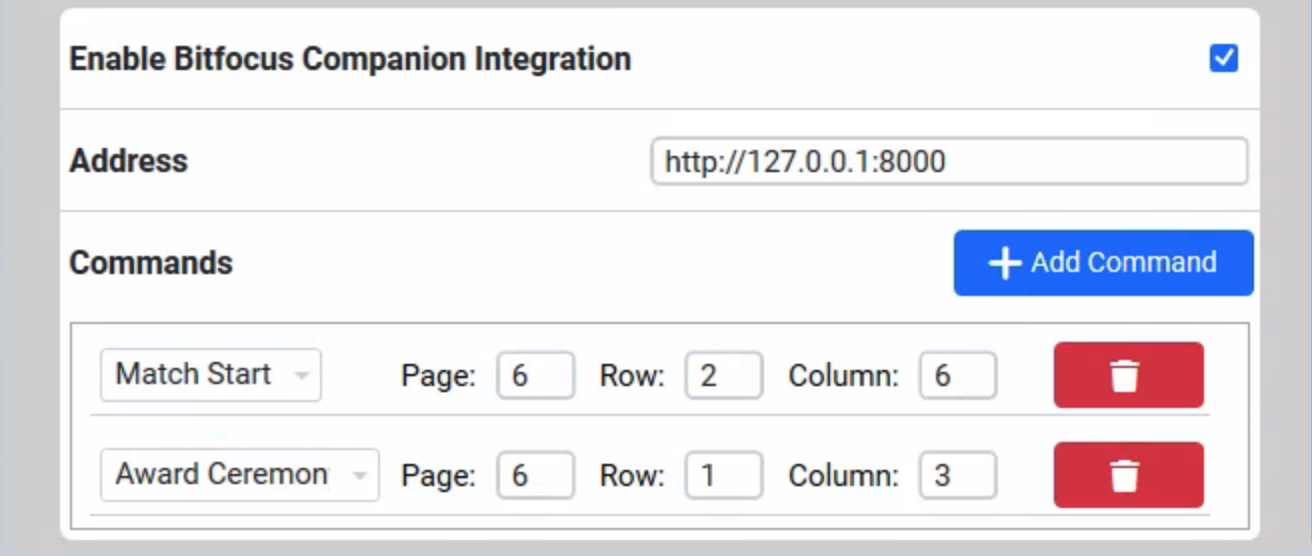
Within the Audience Display settings, check the “Enable BitFocus Companion Integration” checkbox and complete the address as configured in the above “Download and Installation” section. The address must be a valid URL- written with the leading http (or https). The port is also required as Companion should not be run on 80 or 443. Since it must be a valid url, the use of localhost must be replaced with 127.0.0.1.
Note
The Audience Display can only accept a single action for each event type. If multiple downstream events need to happen based on the event trigger, they must be configured to run in the button press stack within Companion.
Warning
The Companion pages are not 0-indexed unlike the rows and columns. Be careful to make sure you’re setting the right page in your request! You will not be able to save a config that tries to use page 0.
A Note on State Tracking
Please note that the Audience Display keeps track of the state internally, using a combination of FMS and Scorekeeper messages. The Audience Display will only issue commands to Companion when a state change is detected. This is an intentional design choice, as it prevents unnecessary duplicated commands and competing against an operator who may be attempting to manually navigate away from a given state.
A practical example: The Audience Display is open and running, and the Alliance Selection process begins. If a command was added, Companion will be notified of the Alliance Selection process state. During the ceremony, the Audience Display is closed and re-opened for some reason. When re-opened, Companion will not be notified as there has been no state change as far as FMS / the Scorekeeper are concerned. However, if the Scorekeeper was to run a “Test Match” and then come back to the Alliance Selection process then an event would be fired to Companion.
Important
Do not enable this feature without the corresponding setup in Companion as it may impact Match Play. Do not enable this integrtion on more than one Audience Display within the same field network as they may compete with each other.