Tabs
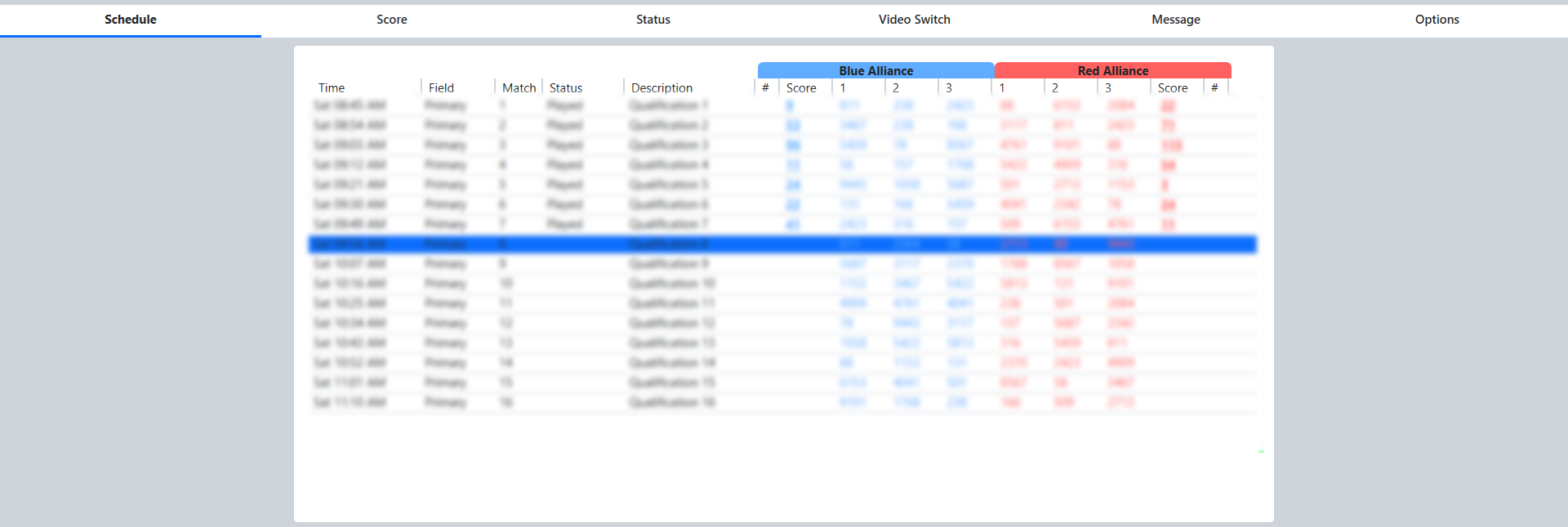
The bottom of the Match Play interface has a display window with a number of tabs:
Schedule - displays the currently active schedule
Score - displays the counts for various scoring elements as they are entered by referees or collected from automated scoring components on the field (score tab)
Status - displays connection information on all the robots current on the playing field (see status tab)
Video Switch - manual interface used to control the Audience Display(s)
Message - display messages on the Background of the Audience Display(s)
Options - configuration options
Many of these tabs are described in detail below. Status and Score tabs are not described in this article but rather in later articles.
Schedule
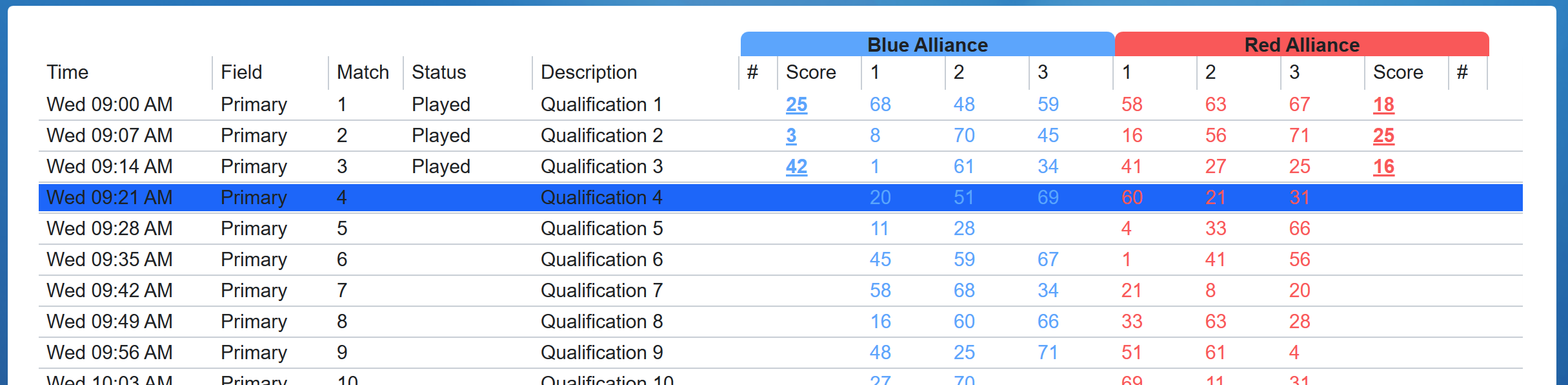
Currently active tournament level schedule, in match number order. To play a Match, click on it in the list (the list is disabled once Pre-Start is complete). The FCUI will automatically advance to the next unplayed Match at the conclusion of each Match (no need to “re-click” each time). To replay a Match, manually select it from the list and confirm the replay upon Prestart.
Time - Date/time the Match is scheduled to begin
Field - Field on which the Match is scheduled to be played
Match - Number of the Match
Status - Match Status of one of the following values:
Played - Match Complete
In Progress - Match Running (on any field)
Aborted - Match was canceled or E-stopped
(Blank) - Match not yet played
Description - Short summary of the Match type
Blue Alliance / Red Alliance:
Score - Alliance score (once Match is complete)
1/2/3 - Team numbers in their matching stations
Video Switch
Note
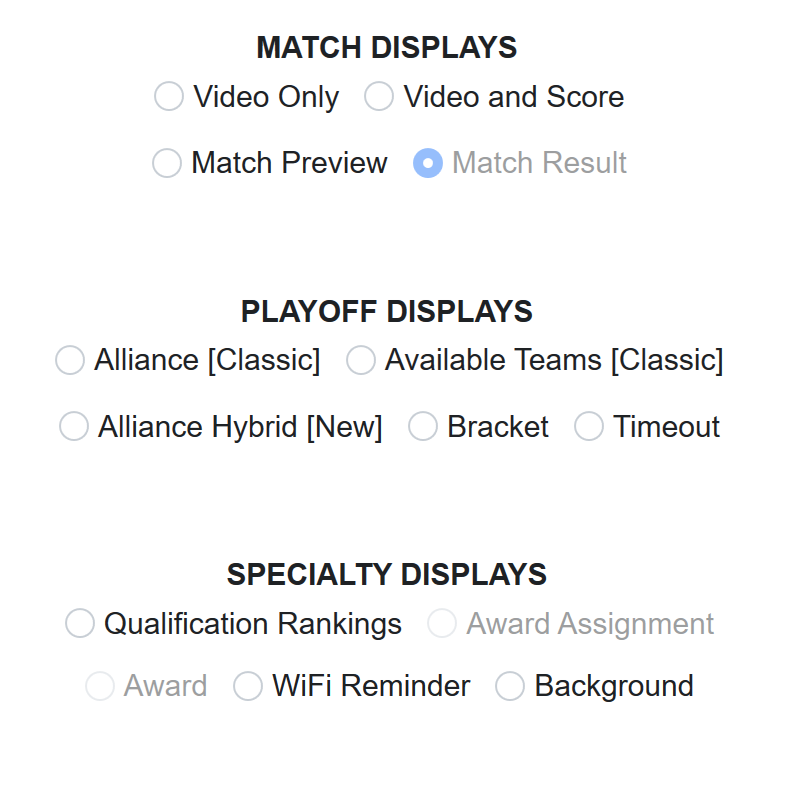
Selecting a display here will make all instances of the Audience Display change
Message

Messages can be displayed on all Audience Display instances by typing a title and subtitle and clicking Send Message. Messages will be displayed on all instances of Audience Display running on the FMS Network.
Options
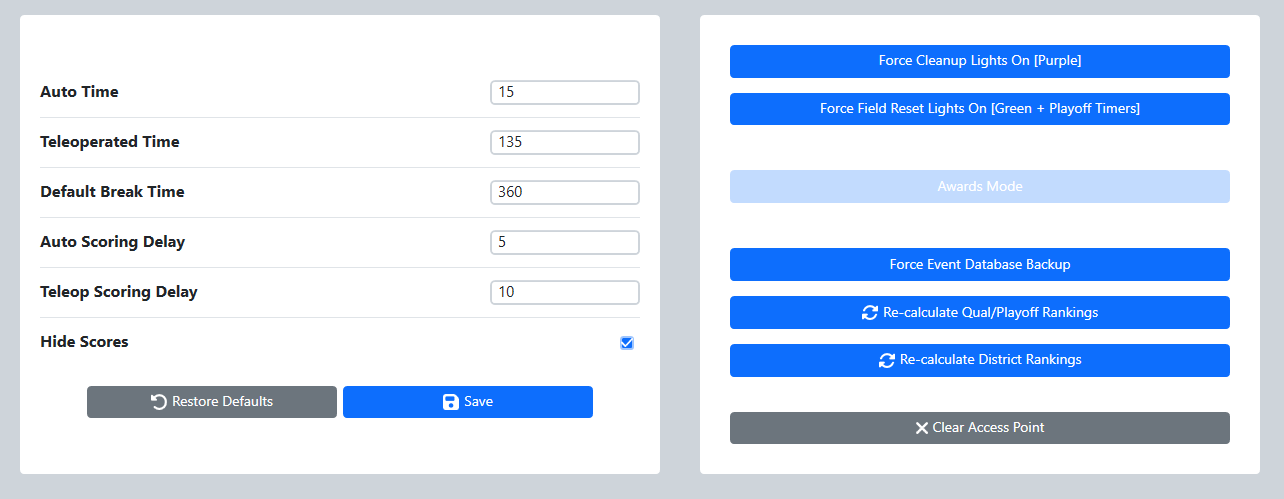
Match timing can be adjusted from this screen, for use in such things as demo matches. Clicking Restore Defaults will return all three fields to their season-specific standards. Select save after any adjustments for the timing to take effect. Timing can only be changed prior to Prestart.
Timing Items - Adjust the corresponding time
Hide/Unhide Scores in Playoffs - Hide the red and blue alliance final scores at the end of teleop in Playoff matches
Hide Scores - Hide and unhide red and blue alliance scores on demand
Practice Field Mode - Bypasses some restrictions such as requiring valid scores in order to commit a match
On the right side of the display there are options for some common operations:
Force Cleanup Lights On - When not in-match, force the purple “cleanup” lights to illuminate and indicate field staff may begin clearing the field. Cannot be used once the green lights are on (or in games where cleanup lights are not applicable).
Force Field Reset Lights On - When not in-match, force the green field reset lights to illuminate and indicate to teams and field staff that the field is “safe to enter”
Awards Mode - Change the state of lights and motors on the field into a photogenic mode worthy of the awards ceremony
Force Event Database Backup - Force a copy of the event database to be made and written to the USB Drive specified in Settings
Re-calculate Current Rankings - Runs all teams through the calculator for the given tournament phase
Re-calculate District Rankings - Runs all teams through the calculator for the distirct rankings at the selected event
Clear Access Point - Remove the team number programming from the AP (does not change the 2.4 GHz radio). Useful in situations where a team needs to connect to their machine, but the AP is currently programmed to their team number (such as between finals matches)